Thursday, 20 July 2017

Using Google Slides for Planner Printables


G-Suite is absolutely amazing - it's free to use and all G-Suite files do not count towards your Drive storage.

I am a huge planner addict, and I love to create things so in this instance it is making my own planner stickers and inserts, customised to how I want them! It was just me fiddling around in the suite of apps within Drive that I started using Google Slides as a desktop publishing software (think along the lines of Microsoft publisher) while it’s not quite on the scale of Adobe InDesign, it does a great job for making stickers and inserts. Plus I have set up a little resource library here on my blog where you can take things I have already done and tweak them to your requirements :) Under “Downloads” At the top, you will find “Planner Goodies”, or click RIGHT HERE.
What can I make?

Pretty much anything! A5, personal, pocket, traveler's notebook style & Happy
Planner Inserts, dashboards, covers, dividers and stickers.
So what do you need to know to make your own planner bits in Slides?

I have made a youtube video for this, which you can view here: "USING GOOGLE SLIDES FOR PLANNER PRINTABLES" this shows you how I do things, otherwise I will give you a rough guide below the video...


Firstly we need to get acquainted with the toolbar and what you will need.

Screenshot 2017-07-06 12.10.34

Next to the arrow we have the text box, where you can get some type on your page. Next to that you can insert images (pretty self explanatory) and next to that are the main tools you will need! We have a drop down for shapes and lines.

Screenshot 2017-07-06 12.11.07

Once in a shape or text box you will see this toolbar. You can change the fill colour, line colour, line thickness and line style (dotted or dashed!) Then we have the Font selection - here you have access to all the Google Fonts, I will show you that a bit better below. Font size, Bold, Italic, Underline and Text Colour. After that we have hyperlinks, Add comment (which I don’t use, I believe this is for collaborating with people), then text alignment which is super handy!
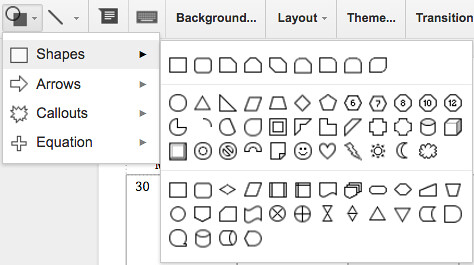
Screenshot 2017-07-06 12.11.59

Here are just some of the shapes available.

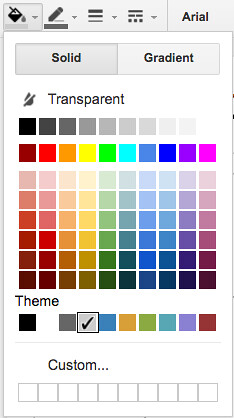
We also have the colour section when you are on objects that you can change the colour of. There is a selection that you can choose from but also there is a “custom” section where you can find your own colour - if you have a hex code (I.e. #000000 and #FFFFFF) then you paste it in here too. I have a file set up with colour combinations that I can copy boxes over to the new document and have the colours ready to choose from that section.

An app I was told about was “ColorZilla” in the Chrome Browser which is fantastic, it can pick the hex code from colours you want to use!
Screenshot 2017-07-06 12.12.13

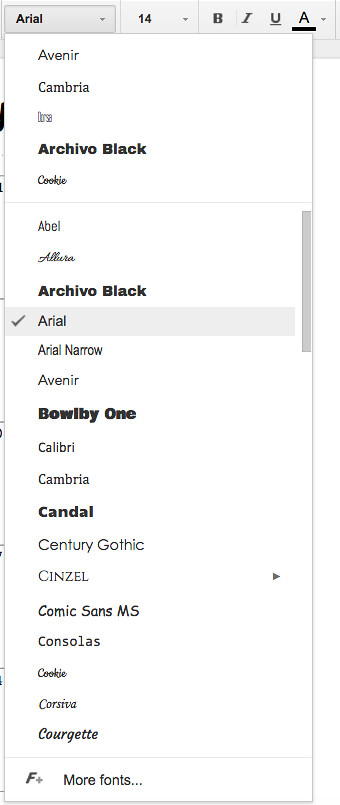
There are lots of fonts to choose from! By clicking “more fonts” at the bottom you have access to the google font library :)
Screenshot 2017-07-06 12.12.57

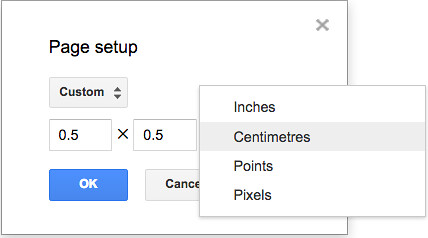
Another thing to note is changing page size - though if you are changing the size, anything on that page will also change ratio of the items on that page, so you might want to start a new document and copy & paste everything over to your newly sized page.

I have a document set up called “sizer” where I can make boxes the precise size I want, say like a 1 inch box on my page which I then can copy and paste. Perfect if you want to make stickers for a HP or an EC.
Screenshot 2017-07-06 12.57.37

It’s then all just down to playing with all these tools and see what you come up with. I do have some files that you can use, once you are viewing them click FILE > MAKE A COPY to start using some of my files to customise to how you want them to be!

Saturday, 8 July 2017

How I Use Google Drive & G-Suite to organise my life & home


I have free online storage from quite a few places, but the best by far has to be Google Drive for me! I use it for so many different things it has become an invaluable tool for my home, mostly because of the Suite of apps run within it, so I’m going to share with you how I use it…

Play school


I save Dylan's weekly reports (each week the staff share what Dylan has been doing during his sessions) which I download as a PDF and save in his own playschool folder. I also write up Dylan's half term reports on Google Docs ready to copy & paste and share through the platform the play school uses.

20170705_155724

Organising


The latest project is label tags for Dylan's toy boxes. We have boxes for his kitchen stuff, building, puzzles, music etc so using the flat icon website, I have put together some labels that he can see without being able to read (although to be fair, Dylan knows by now what toys go in which box really, it will mostly help daddy out!)
I have a DVD inventory in a spreadsheet, I recorded episodes of tv shows off the telly and onto DVDs and made a list of the episodes into a doc file. Plus I made a vision board of our home before we moved in to get a better idea of how we wanted to set up the rooms.
When it comes to car/house insurance renewal, I have documents set up (this helps especially when looking into car insurance for hubby - we currently have joint insurance but when I'm looking for a cheaper deal I need his info) with all the answers I would need to questions on comparison websites. Sometimes the info is saved over to the next year on the website itself, sometimes they disappear so it certainly helps that I have the information to hand!

Scrapbooking


While I don't keep my digi kits stored here as they would take up far too much storage, I have experimented in digi scrapping within google drawings. On google slides, I have done album mock ups such as an album all about my nan to print on to cardstock and assemble into an album - these of course don't use any storage space. Slides has become my most used tool, using it as a desktop publishing software.

I have taken online classes, Cathy Zielske is my fave! I have saved a lot of my class materials to my google drive, especially after big picture classes went through a big change and we were encouraged to back up the materials before they were no longer available. I'm hoping to use Slides to prep for a lot of Cathy's upcoming Design Your Life 2.0 class as well.

Family history


Ancestry showed a really cool binder their genealogists put together, so I decided I could do something similar with google docs. I have made family tree pictures with drawings to insert into the document (I have 2 - one for ancestors on mum’s side and another for ancestors on my dad's side) and I save research here too.

20170705_155937

Planner


Slides has been amazing for me - I started using it as a desktop publishing tool a long time ago before I even realised that was what some other people were doing. I have made planner stickers, inserts & more within it, and I love it! Check out my video on how I use it here.

IFTTT


Rather randomly, I set up ifttt to save weather information to a spreadsheet for my hometown, since 2015. This is especially neat to look back on but other than that it has no purpose, well that I have yet anyway!
I also have a spreadsheet for medication, using the “do button” or “do widget” I press it and it adds a row to the spreadsheet with the date and time as a reminder of when I (or hubby, as he always forgets) or Dylan, takes medicine, so I press the button and I have record of it.

Finance


This has to be one of my ultimate uses. Every new financial year, I have a new household budget spreadsheet. While I use YNAB for tracking and overall household finance, my spreadsheet has the numbers I use for YNAB. As I am on a part time wage & more often than not it varies each month and hubby is paid full time the same amount each month, the spreadsheet works out the percentage we contribute to the household, plus our budget per month listed down, and shows how much I should have towards savings. Best of all it can be viewed by hubby as it is shared.

I also have holiday/vacation budgets spreadsheets, Christmas budget spreadsheets, and when we moved into this house, budget for furniture & moving costs.

Work


While not household, I keep a running log of holiday leave taken from work plus notes of overtime each month I have done. When I worked through an agency, I also kept a running log of holiday accrual and kept a list of appointments when I was pregnant with Dylan plus time I paid back to the company in a spreadsheet so I had it all noted down.

Website (& design)


I decided fairly recently to keep my website “resources” within drive. I stumbled upon Joshua Pomeroy’s YouTube channel about using design in drawings and slides & firstly I thought it was awesome because I used slides for designing planner stickers and inserts already so it was a huge inspiration to me. I began to start putting some of the design resources I collected over the years into drive (they are all still kept in Box as an original though) as G-Suite files and I figured it would be good to keep logo, brand identity, backgrounds, elements, patterns etc in their own folders for ease of access, and as G-Suite files do not count towards storage I have added some images etc as Google Drawings image files.

Google photos


I backed up photos and videos through the app which are also saved to my drive. I have the optimised size and not original saved here purely as a back up. I figure that is better than lost forever, though my photos are also saved to my Flickr from my phone so it's not a major deal to me, but it's great to have the peace of mind.


I shall certainly work on a new post with the planner inserts in more depth and share some of my Drive files here as well under downloads for sure so keep an eye out for those!